Selenium is unable to type in iframe. But we can write in it by identifying the iframe using css.
When you write any mail in gmail you can see the body is a iframe we can write in it using below commands Selenium IDE
<tr>
 <td>storeEval</td>
 <td>var bodytext=" Writing text in iframe body with the help of http://automationtricks.blogspot.com ";  var iframe_locator="css=table:contains('Subject:') +*  iframe";   var iframe_body=selenium.browserbot.findElement(iframe_locator).contentWindow.document.body;   if (browserVersion.isChrome){    iframe_body.textContent=bodytext; }  else if(browserVersion.isIE){ iframe_body.innerText=bodytext; }</td>
 <td></td>
</tr>
Selenium RC.
String = selenium.getEval("var bodytext=\" Writing text in iframe body with the help of http://automationtricks.blogspot.com \"; var iframe_locator=\"css=table:contains('Subject:') +* iframe\"; var iframe_body=selenium.browserbot.findElement(iframe_locator).contentWindow.document.body; if (browserVersion.isChrome){ iframe_body.textContent=bodytext; } else if(browserVersion.isIE){ iframe_body.innerText=bodytext; }");
How to locate an element based on their label.
Some time it difficult to locate an element usiing DOM, HTML and xpath. In that case we use to locate the element with the
help of their lables.
For example : Go to yahoo login page
selenium.open("https://login.yahoo.com");

Based on the lable "Yahoo ! ID" we will read the text box and type in.

selenium.type("css=label:contains(\"Yahoo! ID\")+input", "niraj");

Based on the lable "Password" we will locate the text box for passowrd and type in.

selenium.type("css=label:contains(\"Password\")+input", "pass");
Go to yahoo registrantion page.
selenium.open("https://edit.yahoo.com/registration?.intl=us");

Based on Name label we will type in First Name text box.

selenium.type("css=label:contains(\"Name\")+div>input", "niraj");

Based on Name label we will  type in Last name text box.

selenium.type("css=label:contains(\"Name\")+div>input+input", "kumar");

Based on Gender lable we will select the gender from drop down.

selenium.select("css=label:contains(\"Gender\")+div>select", "label=Male");

Based on Birthday lable we will select the month from drop down.

selenium.select("css=label:contains(\"Birthday\")+div>select", "label=January");

Based on Birthday lable we will type the date in date text box.

selenium.type("css=label:contains(\"Birthday\")+div>select+input", "2");

Based on Birthday lable we will type the year in year text box.

selenium.type("css=label:contains(\"Birthday\")+div>select+input+input", "1982");

Based on country lable we will select India in country drop down box.

selenium.select("css=div>label:contains(\"Country\")+div>select",
"label=India");
+ Is used to point the element on the same node in tree of css.
<label class="label" for="name">Name</label>
<div class="collection" id="name">
<input type="text" title="First Name" name="firstname" id="firstname" value="" size="32" maxlength="32" class="" autocomplete="off">
<input type="text" title="Last Name" name="secondname" id="secondname" value="" size="32" maxlength="32" class="" autocomplete="off">
</div>
to access firstname text box
selenium.type("css=label:contains(\"Name\")+div>input", "niraj");
to access secondname its the same label of div but on the second place
selenium.type("css=label:contains(\"Name\")+div>input+input", "kumar");
> Is used to point the element one node down in the tree of css.
to access firstname text box
selenium.type("css=label:contains(\"Name\")+div>input", "niraj");
How to upload a file in selenium with the help of AutoIT
Recently, I had the challenge of writing some automation for a workflow which included uploading a file because uloading a file works on windows component.
selenium is unable to access windows components and it will be handled through AutoIT.
Once you are able to click on browse button and a dialog box is open to choose the file then you just run a AutoIT script which will help to select the file from your local or remote drive and control will come to your web page to proceed with selenium.
Step to choose a file from your local or remote drive
write a AutoIT script to choose a file from your local or remote drive.
#include <IE.au3>
; Internet Explorer is partly integrated in shell.application
$oShell = ObjCreate("shell.application") ; Get the Windows Shell Object
$oShellWindows=$oShell.windows   ; Get the collection of open shell Windows
$MyIExplorer=""
for $Window in $oShellWindows    ; Count all existing shell windows
  ; Note: Internet Explorer appends a slash to the URL in it's window name
  if StringInStr($Window.LocationURL,"http://") then
      $MyIExplorer=$Window
      exitloop
  endif
next
$oForm = _IEGetObjByName ($MyIExplorer, "UploadedFile")
_IEAction($oForm, "click")
WinActivate("Choose file");
Local $file = "C:\Documents and Settings\intelizen\Desktop\selenium.txt"
ControlSetText("Choose file", "", "Edit1", $file )
ControlClick("Choose file", "", "Button2")
setp 3.
Complie AutoIT script and make exe of that script.
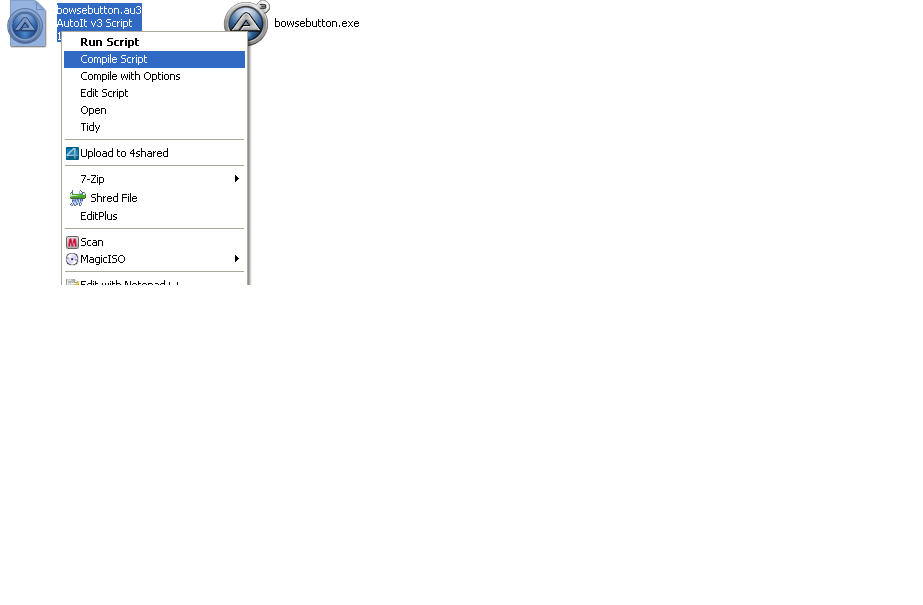
Right click on that saved script file and click on "Compile script" from context menu. This will make an exe file of that script.
setp 4.
Call that exe in selenium.
Process proc = Runtime.getRuntime().exec("C:\\niraj\\FileUpload.exe");
If you want to test this script then just download the script exe file and click on browse button on web page and run this exe file. Just make sure you have your file in correct path by changing this line of script in the second step
Local $file = "c:\yourpath\howtoupload.doc"
in above line of script change your file path then make exe of your script then click on browse button on your web page then run this exe . I am sure this would work.
If it still is nor working then change the script like
#include <IE.au3>
; Internet Explorer is partly integrated in shell.application
$oShell = ObjCreate("shell.application") ; Get the Windows Shell Object
$oShellWindows=$oShell.windows   ; Get the collection of open shell Windows
$MyIExplorer=""
for $Window in $oShellWindows    ; Count all existing shell windows
  ; Note: Internet Explorer appends a slash to the URL in it's window name
  if StringInStr($Window.LocationURL,"http://") then
      $MyIExplorer=$Window
      exitloop
  endif
next
$oForm = _IEGetObjByName ($MyIExplorer, "UploadedFile")
_IEAction($oForm, "click")

WinActivate("File Upload");
Local $file = "c:\yourpath\howtoupload.doc"
ControlSetText("File Upload", "", "Edit1", $file )
ControlClick("File Upload", "", "Button2")
In above script you might need to change your file path and browse button name and the title of you dialog box.
Below is an example in selenium RC for uploading your file which works on
Step 1.
First download the zip file and extact the files . There are 2 files in this one "Browse.a3" is for clicking on browse button and other one is "upload.a3" for selecting the path from your location and open it in dialog box.Make exe of both files and use in selenium RC like in second step.
Write a selenium rc script like below . This script will works file with internet explorer. This script will open http://www.pdfonline.com/convert-pdf there you
will get a browse button. when Process proc = Runtime.getRuntime().exec("C:\\Documents and Settings\\nirkumar\\Desktop\\Browse.exe"); executes then it will
identify the browser and try to identify the element "Browse button" In attached files "Browse.au3" identtifies the button with name of "File1" but
if you have differen name of your browse button then open then "Browse.au3" file and change the line " $oForm = _IEGetObjByName($MyIExplorer, "Your browse button name") and save it and
make exe of that file. Now call this file in selenium. It will click on browse button.
import java.io.IOException;
import org.openqa.selenium.server.RemoteControlConfiguration;
import org.openqa.selenium.server.SeleniumServer;
import com.thoughtworks.selenium.*;
public class Uploadingfiles extends SeleneseTestCase{
 Selenium selenium;
 public static final String MAX_WAIT_TIME_IN_MS="60000";
 private SeleniumServer seleniumServer;
  public void setUp() throws Exception {

     RemoteControlConfiguration rc = new RemoteControlConfiguration();
          rc.setSingleWindow(false);
          seleniumServer = new SeleniumServer(rc);
          selenium = new DefaultSelenium("localhost", 4444, "*iexplore", "http://www.pdfonline.com/convert-pdf/");
          seleniumServer.start();
          selenium.start();
          }

public void testgoogling() throws IOException {
selenium.open("http://www.pdfonline.com/convert-pdf/");

Process proc = Runtime.getRuntime().exec("C:\\Documents and Settings\\nirkumar\\Desktop\\Browse.exe");
Process proc1 = Runtime.getRuntime().exec("C:\\Documents and Settings\\nirkumar\\Desktop\\Upload.exe");
pause(10000);
}
}
When browse button clicked it will open a choose file dialog box. then Process proc1 = Runtime.getRuntime().exec("C:\\Documents and Settings\\nirkumar\\Desktop\\Upload.exe"); line will be executed
and this will set the file path and click open. In the attached zip you will get one file "Upload.a3" in this file you have to set the path of your file which you want to upload
Local $file = "Your file location" this will set the path of your file and click on open button.
How to upload a file in selenium with the help of AutoIT
Recently, I had the challenge of writing some automation for a work flow which included uploading a file because uploading a file works on windows component.
selenium is unable to access windows components and it will be handled through AutoIT.
Once you are able to click on browse button and a dialog box is open to choose the file then you just run a AutoIT script which will help to select the file from your local or remote drive and control will come to your web page to proceed with selenium.
Step to choose a file from your local or remote drive
Step 1.
Click on browse button on your web page and go to second step.If you are unable to click on browse button then visit below page.
If you want to test this script then just download the script exe file and click on browse button on web page and run this exe file. Just make sure you have your file in correct path by changing this line of script in the second step
Local $file = "c:\yourpath\howtoupload.doc"
in above line of script change your file path then make exe of your script then click on browse button on your web page then run this exe . I am sure this would work.
If it still is nor working then change the script like
Recently, I had the challenge of writing some automation for a work flow which included uploading a file, and then downloading a file later in the work flow. AutoIT
Autoit is a freeware windows testing tool. Autoit allows you accessing windows components similar to QTP. Basically once you have identified the id of the component on the screen you can use it by either clicking on it, typing in something. Using Autoit we can identify the internet explorer “Choose file” or Firefox
“File Upload” windows and enter the correct value to the input
field after which you will press the open button.
Step to click on browse button. Step 1.
Download the AutoIT and intall it.
setp 2.
write a AutoIT script to click on browse button and save it.
#include <IE.au3>
; Internet Explorer is partly integrated in shell.application
$oShell = ObjCreate("shell.application") ; Get the Windows

Shell Object
$oShellWindows=$oShell.windows   ; Get the

collection of open shell Windows
$MyIExplorer=""
for $Window in $oShellWindows    ; Count all existing

shell windows
  ; Note: Internet Explorer appends a slash to the URL in it's

window name
  if StringInStr($Window.LocationURL,"http://") then
      $MyIExplorer=$Window
      exitloop
  endif
next
$oForm = _IEGetObjByName ($MyIExplorer, "UploadedFile")
_IEAction($oForm, "click")
setp 3.
Compile AutoIT script and make exe file of that script.
Right click on that saved script file and click on "Compile script" from context menu. This will make an exe file of that script.
setp 4.
Call that exe in selenium.
Process proc = Runtime.getRuntime().exec("C:\\Documents and Settings\\nirkumar\\Desktop\\Browse.exe");
If you want to test this script works then download the exe and open the page which has browse button and run(double click on this exe) this exe file. i am sure this
will click on your browse button and open a dialog box. If it does not then definitely your browse button has some other name than "UploadedFile" then in the step 2 change the button name and make exe of that script and run it.
How to share a variable in more than one test case.
We Create a variable in one test case and use in another test cases. If these test cases are running seperately and independetely then those variable
cannot shared. But if we run all test cases in test suite then one varaible declared in one testcase can be used in another
Follow these steps.
Create your test cases saparetly and call them in a test suite. 1.Create first test case
Test1.html
<html>
 <head></head>
  <body>
   <table>
    <tbody>

     <tr>
       <td>Test suite for sharing variable among test cases </td>
     </tr>

     <tr>
      <td><a target="testFrame" href="test1.html">test1</a></td>
     </tr>

    <tr>
      <td><a target="testFrame" href="test2.html">test2</a></td>
    </tr>

    <tr>
      <td><a target="testFrame" href="test3.html">test3</a></td>
    </tr>
  </tbody>
</table>
</body>
</html>
Run your test suite and you will see the variable vartest1 decalred in testcase1 being used in testcases2
and variable vartest2 declared in testcase2 being used in testcase3.
How to use functions in xpath
Automation using selenium is a great experience. It provides many way to identif an object or element on the web page.
But sometime we face the problems of idenfying the objects on a page which have same attributes. When we get more than
one element which are same in attribute and name like multiple checkboxes with same name and same id. More than one button having
same name and ids. There are no way to distingues those element. In this case we have problem to instruct selenium to identify a perticular
object on a web page.
I am giving you a simple example . In the below html source there are 6 checkboxes are there having same type and same name.
It is really tough to select third or fifth.
I will show you how we can use some of these above functions in xpath to identify the objects.
Node Set : last()
In the above html file there are six checkboxes and all are having same attributes (same type and name)
How we can select the last checkbox based on the position. We can use last() function to indentify the last object among all similar objects.
Below code will check or uncheck the last checkbox.
How we can select the second last checkbox and third last checkbox. We can use last()- function to indentify the last object among all similar objects.
Below code will check or uncheck the second last checkbox and thrid last checkbox respectively.
If you want to select any object based on their position using xpath then you can use position() function in xpath.
You want to select second checkbox and forth checkbox then use below command
above code will select second and forth checkbox respectively.
String : starts-with()
Many web sites create dynamic element on their web pages where Ids of the elements gets generated dynamically.
Each time id gets generated differently. So to handle this situation we use some JavaScript functions.
XPath: //button[starts-with(@id, 'continue-')]
Sometimes an element gets identfied by a value that could be surrounded by other text, then contains function can be used.
To demonstrate, the element can be located based on the ‘suggest’ class without having
to couple it with the ‘top’ and ‘business’ classes using the following
XPath: //input[contains(@class, 'suggest')].
For rest of the function please keep reading my blogs i will be posting very soon.